IPTV Smarters Pro on Fire TV Stick: The 2026 Installation Guide
28 octobre 2026 · 7 min · The IPTV Team
Why the Fire TV Stick and IPTV Smarters Pro Are a Winning Combo
Amazon's Fire TV Stick has become the best-selling streaming device in France, and it's easy to see why: it's compact, affordable, and compatible with virtually every IPTV app out there. Among them, IPTV Smarters Pro stands out as the go-to choice thanks to its polished interface, Xtream Codes compatibility and native 4K support. Whether you're a first-timer or a seasoned user, this tutorial walks you through every step, from unboxing to your first live match.
Before you start, make sure you have your login credentials at hand (provided by your IPTV subscription) and a stable internet connection. If you're still unsure which provider to pick, our article on the best IPTV subscription in 2026 will save you from nasty surprises. To check out Amazon's official lineup, head to the Fire TV Stick 4K product page.
Step 1: Get Your Fire TV Stick Ready for Third-Party Apps
By default, the Fire TV Stick won't let you install apps from outside its own store, so you need to flip one security switch first: go to Settings > My Fire TV > Developer Options and turn on "Apps from Unknown Sources". Don't worry — this is fully reversible and completely safe for your device.
Next, install the "Downloader" app from the Amazon store. It's a free download browser that lets you grab the IPTV Smarters Pro APK file straight onto your TV, no computer required.
Step 2: Install IPTV Smarters Pro in 3 Minutes
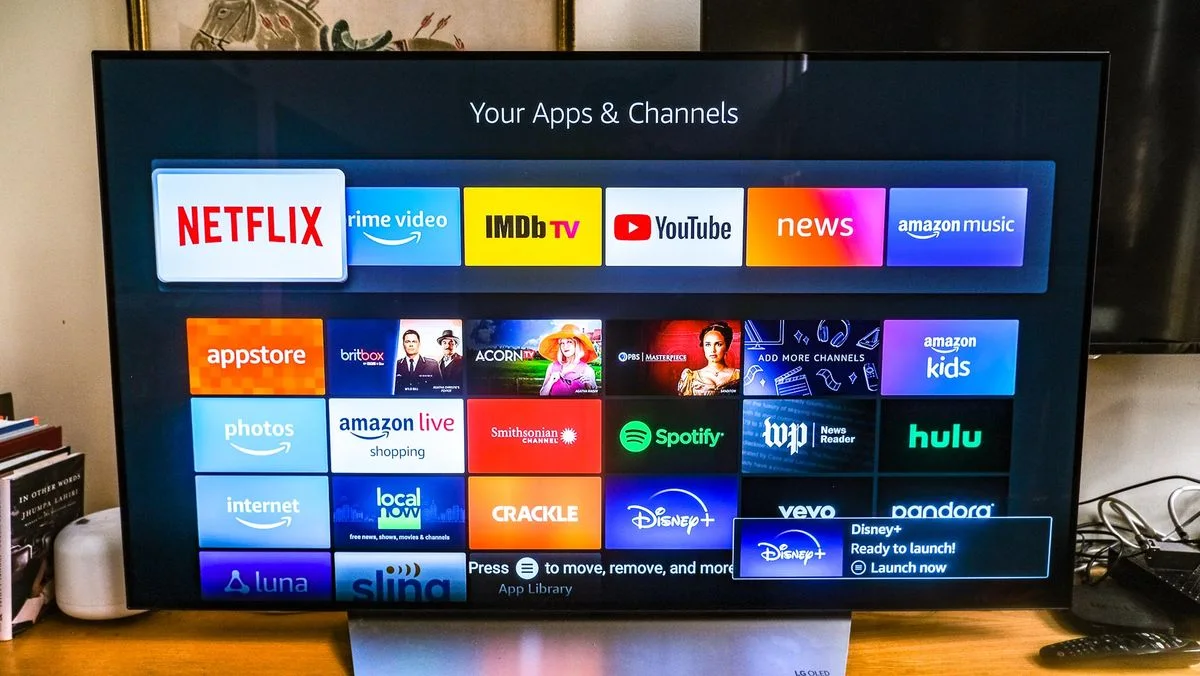
Open Downloader and type in the official download address for the IPTV Smarters Pro app. Once the APK file has downloaded, the installation launches automatically: confirm, wait a few seconds, then delete the installer file to free up space. The app icon now sits on your Fire TV Stick home screen.
A Fire TV Stick 4K paired with a solid IPTV subscription easily replaces a traditional set-top box — for a fraction of the price.
Step 3: Enter Your Credentials and Optimize Streaming
On first launch, choose "Login with Xtream Codes API" — it's the most reliable method. Simply enter the username, password and server URL provided by your subscription, and your channel list, program guide (EPG) and VOD library load automatically. No tedious M3U file handling needed.
For the best possible experience, run through these quick checks before your first TV night:
- Internet speed: at least 25 Mbps for 4K, 15 Mbps for HD; favor Wi-Fi 5 GHz or Ethernet via an adapter.
- Video player: test both the built-in player and an external player to see which streams your channels more smoothly.
- Display format: enable automatic resolution in the Fire TV Stick settings to avoid stuttering.
If streams cut out during big events, the problem rarely lies with your device. Check our deep dive on 4K and 8K anti-freeze technology to understand how premium servers eliminate buffering, and browse our subscription plans compatible with every device.
Conclusion: Your Living Room Transformed in Minutes
Between prepping the device, installing the APK and entering your credentials, you're less than ten minutes away from thousands of channels on your TV. The Fire TV Stick and IPTV Smarters Pro make a simple, powerful and budget-friendly combination that's perfect for the whole family. Ready to dive in? Check out our compatible subscriptions now.
Ready to enjoy IPTV?